
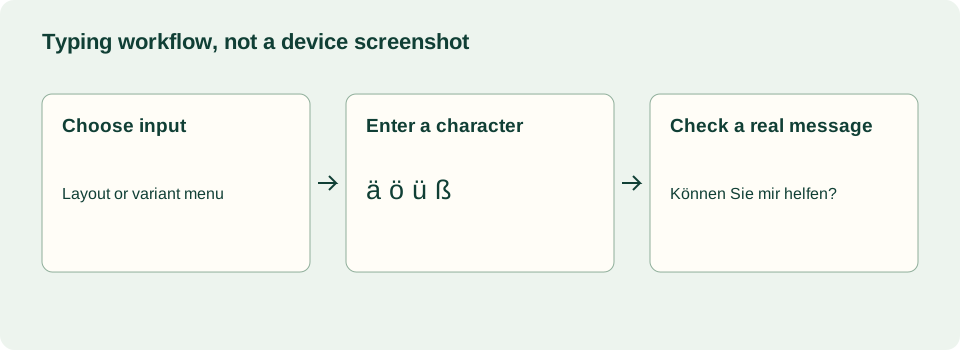
Choose a typing method for your device
For an occasional German message, copying a character may be enough. For regular writing, add a German input layout and practise switching back. The instructions below describe the vendor-supported routes checked on 28 October 2026; menu labels can vary with system language and version.
| Device | Start here | If a character is missing |
|---|---|---|
| Windows | Add a German keyboard/input layout; switch with Windows+Space. | Check which layout is active; use the character strip below. |
| Mac | In a text field, hold a vowel key and choose an available variant. | Some apps do not show this menu; use the character strip. |
| iPhone/iPad onscreen keyboard | Hold the related letter, then slide to a variant. | Add/switch to a German keyboard if needed. |
| Android with Gboard | Hold a key for variants; add German in Gboard language settings. | Menus depend on the installed keyboard and version. |
Windows: add input, then check the active layout
Open Settings and find Time & language, then Language & region. Open the relevant language options and add a keyboard layout such as German. Adding input does not require changing the language of every menu. Microsoft’s support page provides the exact current steps for Windows 11 and 10.
Use Windows+Space to cycle through installed input layouts. If nothing changes, there may be only one layout installed. Test y and z and one punctuation mark before typing an important message: a German QWERTZ layout changes more than just the umlauts.
Mac, iPhone and Gboard: use the variant menu
On Mac, hold a letter in a text field and choose a displayed variant. Apple notes that the menu is not available for every key or app. On an iPhone onscreen keyboard, hold a related key and slide to the available character. In Gboard, hold a key for variants or add German under Languages.
Do not assume that every English keyboard menu offers ß. If the variant is absent, switch to an appropriate German layout or copy it. If you use another Android keyboard, follow that keyboard provider’s instructions rather than assuming Gboard’s menus apply.
Copy the characters and test a real sentence
Select the characters you need from this strip. Ä, Ö and Ü are distinct letters; an umlaut is not decorative punctuation. When a system cannot accept umlauts, ae, oe and ue are conventional fallback spellings, with ss commonly used when ß is unavailable. Follow the required spelling for names and account fields.
The examples use Germany’s standard spelling. Swiss and Liechtenstein standard spelling uses ss instead of ß: Viele Grüsse aus München! is valid in that convention.
ä ö ü Ä Ö Ü ß ẞ
Copyable character strip.
Können Sie mir bitte die Öffnungszeiten schicken?
A message that checks ö, Ö and ordinary sentence punctuation.
Viele Grüße aus München!
A short message that checks ü and ß.
- My device and keyboard app: ______
- My method for ä/ö/ü: ______
- My method for ß: ______
- Type: Können Sie mir bitte die Öffnungszeiten schicken?
- Type your own two-sentence German message.
Six tasks to practise
Try each task before opening the answer. Open tasks show one model; equivalent appropriate answers are also possible.
You changed the computer’s display language but still cannot type ü. What should you inspect?
Answer and explanation
The active keyboard/input layout.
Menu language and keyboard input are separate settings.
Which shortcut switches installed Windows layouts?
Answer and explanation
Windows+Space.
It cycles through installed layouts; install another one first if only one exists.
Your Mac app does not show a hold-key variant menu. Is the key necessarily broken?
Answer and explanation
No.
The menu is not supported for every key or app. Use another supported method or copy the character.
Restore the actual German letters: “Viele Gruesse aus Muenchen!”
Answer and explanation
Viele Grüße aus München!
The intended German phrase uses ü and ß. Swiss/Liechtenstein spelling Viele Grüsse aus München! is also valid.
Why might y appear when you expected z after switching layouts?
Answer and explanation
The active layout may have changed between QWERTY and QWERTZ.
A physical key label does not guarantee the character produced by a different input layout.
Write a short question containing an umlaut and then proofread it.
Answer and explanation
Können Sie mir bitte helfen?
The model has ö and a question mark. Equivalent original questions are possible.
Questions learners ask
Do I need a new physical keyboard to type German?
Usually you can add an input layout or use a character menu on your existing device. Printed key labels may differ from the selected layout.
Can I use ae instead of ä?
Ae is a conventional fallback when ä is unavailable. For normal German writing, practise entering the actual character and preserve any required spelling in names and forms.